
Diagnosing infinite loops in Zapier AI automated workflows
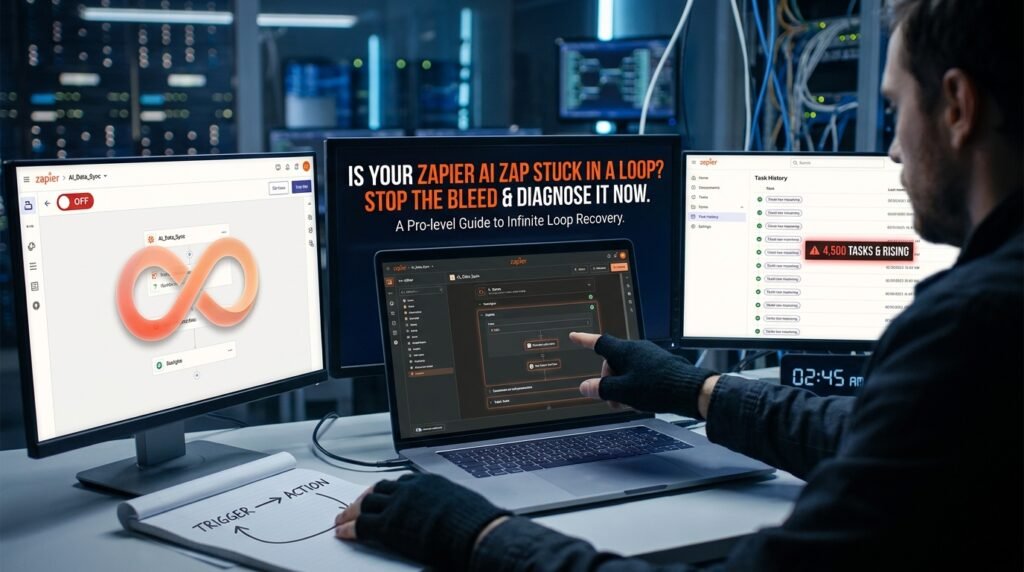
A Zap stuck in a loop almost always boils down to one mistake: an action that writes to the same place its trigger is watching. The AI step rarely causes the loop on its own. It just makes the loop louder, because each cycle now generates fresh text the trigger reads as new. The first thing to do is turn the Zap off, not fiddle with the prompt.
Stop the bleed first
Before you investigate, kill the cycle.
- Turn the Zap off. Don’t pause one step; switch the whole Zap to off. A paused step still leaves the trigger watching.
- Note the time. Whatever data the loop has been creating since you set it up needs cleanup, and the timestamp tells you where to start.
- Open the task history and skim the last 20 runs. The pattern, same trigger payload firing every few seconds or minutes, is what confirms a loop rather than a busy day.
- Only then start diagnosing. Trying to fix a live loop is how you double the mess.
This is the step most people skip because they want to understand the loop first. Understand it after it’s safely off, because every minute it stays on is more cleanup later.
How the loop forms
Three patterns produce nearly every Zapier loop in the wild.
- Trigger and action share a destination. The trigger is ‘new row in sheet X,’ the action writes a row back into sheet X, so each new row triggers itself.
- Email loop. The trigger is ‘new email in inbox,’ an AI step drafts a reply, and the action sends it from the same account. The sent email lands in the same inbox the trigger watches.
- Two Zaps closing a circle. Zap A writes to Sheet 1 when something changes in Sheet 2. Zap B does the opposite. Each one is fine alone; together they ping each other forever.
All three share a structural fault: something downstream looks like a fresh upstream event. The fix is structural too, not a prompt tweak.
A loop-breaker checklist

Run this in order on any Zap you suspect.
The seven checks that catch every loop I’ve seen [ ] 1. Is the trigger watching a destination the action writes to? same sheet, same inbox, same record type [ ] 2. Does any action send an email, message, or record that will land where the trigger is looking? [ ] 3. Is there a second Zap that completes the circle? check Zap B before declaring Zap A clean [ ] 4. Does the trigger have a filter that excludes the action’s output? (e.g. skip rows where Source = ‘automation’) [ ] 5. Is there an idempotency check? skip if a ‘processed = true’ flag is already set [ ] 6. Is there a hard cap? a counter, a kill-switch step, or a Filter by Zapier that exits after N runs in M minutes [ ] 7. Are AI outputs marked, so the trigger can tell them apart from human-created records? |
Find the circular trigger
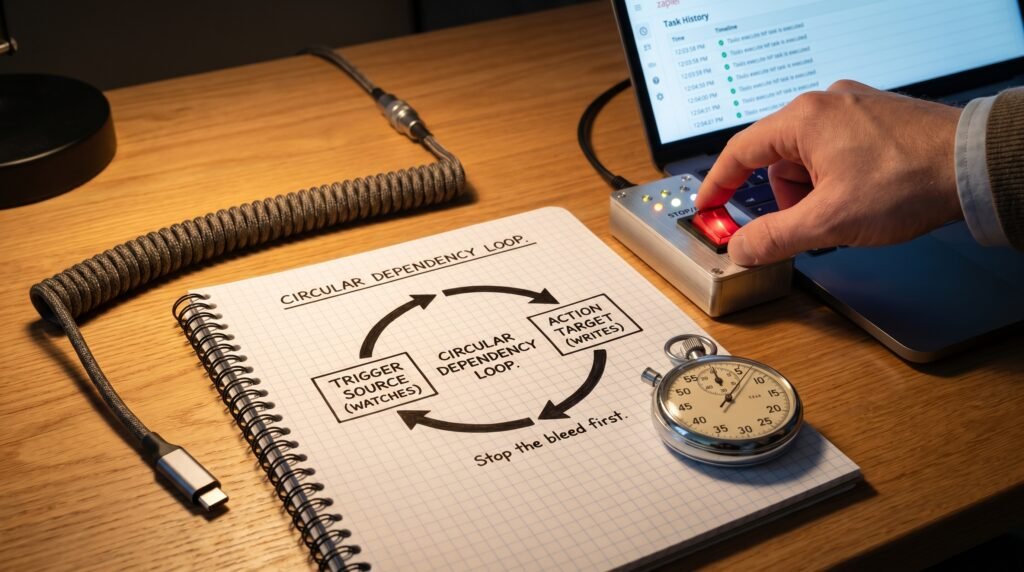
On paper a Zap reads as a straight line. In reality, you have to draw it as a circle and see where it closes.
Figure 1. The shape every loop has TRIGGER ACTION ▲ │ │ ▼ └──── reads the same ◄──┘ place the action wrote to
If the loop above isn’t visible at a glance, draw your Zap with the trigger source and every action’s target written down. The circle pops out the moment you see the same name appear on both sides. |
Writing it on paper sounds primitive, and it’s the fastest way to see the problem. The editor view shows steps top-to-bottom and hides the cycle. The moment you write ‘trigger: Gmail inbox’ and ‘action target: Gmail account,’ the loop is obvious.
A worked diagnosis from real symptoms
Walking through one example fixes the shape of the problem.
Say your inbox is filling with duplicate Slack pings and the task counter is climbing fast. You turn the Zap off. Open the history: the same trigger payload, every two minutes, for the past hour. You draw it. Trigger: Gmail inbox label ‘support’. Action: AI drafts a reply, sends it from the same Gmail account. The sent reply gets the ‘support’ label automatically, because your Gmail filter applies labels on send too. There’s the circle: action’s sent mail is the trigger’s next input. The fix isn’t subtle. Either send the auto-reply from a different account that’s never the trigger, or change the Gmail filter so labels apply only to received mail, or add a trigger filter that excludes messages where ‘From’ contains your own address. Pick one and add the source filter as belt-and-braces. You’d have spent an hour fiddling with the AI prompt before noticing this if you hadn’t drawn the loop.
Break the loop, four ways
Pick by what your Zap actually does, not by what’s quickest.
Fix | How it breaks the loop | When to use |
Source filter | Trigger ignores records the automation made | Easiest; needs a marker on AI-written items |
Separate destination | Action writes to a place the trigger doesn’t watch | Cleanest, when a second sheet or inbox works |
Idempotency flag | Skip if ‘processed = true’ is already set | Best on per-record processing |
Hard cap step | Filter by Zapier exits after N runs in M minutes | Safety net while you debug |
My usual pick is a combination: a hard cap so the bleed stops while you work, and an idempotency flag so each record can only be processed once. The source filter alone is fragile, because anyone can forget to set the marker on a new action.
Where the AI step makes loops worse
AI doesn’t start the loop. It does change how it looks once it starts.
Each cycle produces fresh text that no string match will catch as a duplicate, so the loop runs longer before you notice. The classic version is an auto-reply Zap where the model writes a slightly different polite reply every time, and each reply triggers another reply, and so on. Add to that the cost: every loop cycle is an AI call, a task credit, and sometimes a real-money charge. A loop that ran for an hour overnight on a 2,000-row sheet is a bill you’ll feel. Mark AI-generated records explicitly, in a field the trigger filters on, so a generated row can never look like a fresh human entry.
Add the safety nets you should have started with
Whatever caused this one, add these before you turn the Zap back on.
- Source field on every AI-written record, set to a fixed value like ‘automation’, and a trigger filter that drops anything with that value.
- Processed flag on each input record, written immediately by the first action, with a filter at the top of the Zap that exits when the flag is already true.
- Rate-limit step: a Filter by Zapier that exits if the same input has fired in the last few minutes. This won’t fix a design loop, but it will cap the damage of one you missed.
- Alerting on excessive runs: most automation platforms can email you when a Zap’s task usage spikes. Turn it on, since loops usually show up as a vertical line on the usage chart hours before anyone notices.
Test in a staging space, not on production
Every loop I’ve cleaned up was a Zap that ran live the first time.
Build new Zaps against a staging copy: a duplicate sheet, a test inbox, or a sandbox account in your CRM. Set the trigger to read from staging, set the action to write to staging, and run real input through it for a day. If a loop exists, it eats staging credits and staging rows, neither of which costs you anything. Promote to production only after a full day clean. This sounds like overhead for a five-step Zap, and it is. It’s also the difference between an embarrassing slack message to your team and an embarrassing email to your customers.
Clean up what the loop already did
Once the Zap is off and the cause is named, clean the data it created.
Run a filter on the destination, sheet, inbox, CRM, by the timestamp range when the loop was active, and either the ‘automation’ marker or the AI fingerprint. Export those records before you delete anything, in case you need to recover. Sort by created time and look for the rhythm, hundreds of rows seconds apart, that’s the loop’s signature. Keep one clean original record per real input and remove the duplicates. Don’t do this in production until the loop is genuinely off, because you’ll be deleting rows the still-live Zap is happily recreating behind you.
Questions people actually ask
My Zap triggered itself once and stopped. Was that a loop?
Probably a one-shot echo, not a full loop. It happens when the action creates exactly one downstream event that the trigger picks up, and the next pass doesn’t qualify. Add the source filter anyway, because a one-shot today is an infinite loop the day someone removes whatever quietly stopped it.
Will Zapier detect and stop the loop for me?
Automation platforms have basic protections, like a cap on how often a Zap can fire from the same trigger in a window, and they’ll throttle or pause a runaway. They aren’t a substitute for design, since the throttling kicks in after you’ve burned through tasks and made a mess. Build the controls into the Zap itself.
How do I keep this from happening with two Zaps that talk to each other?
The reliable fix is to designate a single owner for each record. Zap A may write a record, Zap B may read it, but Zap B never writes back to anything Zap A is watching. If both Zaps need to touch the same data, merge them into one Zap with branching logic, since two Zaps quietly forming a circle is the hardest loop to spot.
The AI step is the obvious culprit. Should I remove it?
Usually no, because removing AI just makes the same loop happen with less interesting text. The model isn’t the cause; the wiring is. Keep the AI and fix the trigger-action overlap. If the AI step really is hallucinating fields that re-trigger the Zap, that’s a prompt problem worth solving on its own, separately from the loop.
Turn it back on with the cap in place
Once the Zap is off, the data is cleaned, and the source filter plus a rate-limit step are in place, turn it back on and watch the task history for the first hour. Don’t trust the fix because it ‘looks right’; trust it because the history shows it running once per real input and exiting cleanly otherwise. If the count climbs again, the cap will hold the damage to a few minutes instead of a whole night.

Hi I’m Muzammil Haqani. I’m a content creator and AI expert with 3+ years of experience exploring and writing about artificial intelligence and technology. Through this blog, I share tutorials, insights, and practical guides to help readers understand and use AI tools effectively in their everyday lives.