
Formatting errors that break AI data extraction in large PDFs
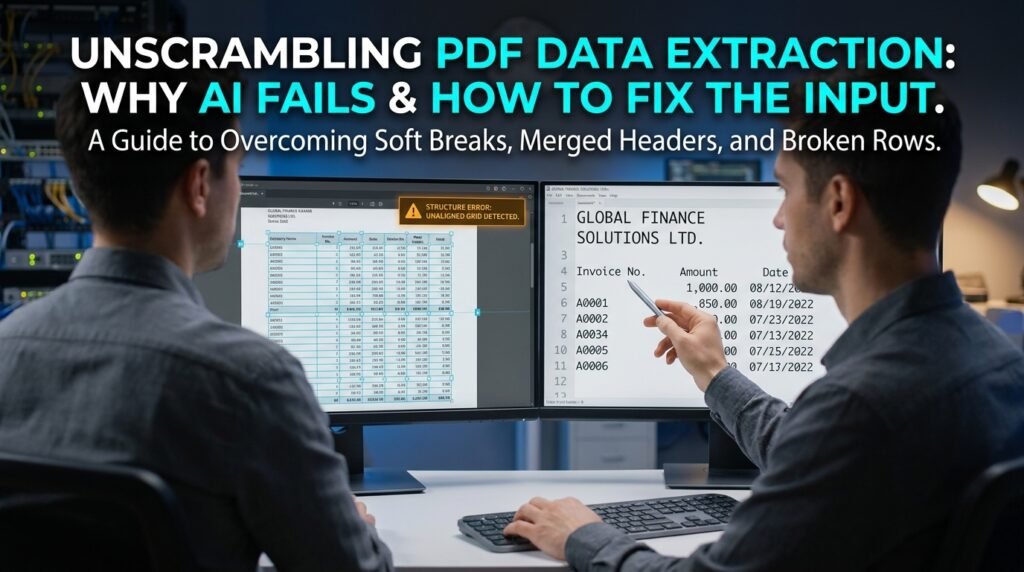
When an AI tool scrambles the rows and columns out of a PDF, the PDF is usually to blame, not the model. A PDF doesn’t store a table as a table. It stores characters at fixed positions on a page, and the neat grid you see is something your eyes assemble. The parser has to reconstruct that structure from scratch, and a few hidden formatting traps make it reconstruct the wrong one.
Why a PDF has no real rows or columns
A PDF is a picture of text, not a structure of data.
Inside the file, each character has a position on the page and not much else. There’s no cell, no column boundary, no ‘this belongs to that header.’ Two documents that look identical on screen can store their characters in completely different orders underneath. When a tool reads a table, it’s guessing where the columns are from the gaps between characters, and guesses go wrong.
Reading order makes it worse. The file doesn’t have to store characters in the order you read them, so a parser can pick up a page in a sequence that makes sense to the file and nonsense to you. That’s how a two-column page ends up with lines from the left and right sides woven together into one garbled stream.
There’s a second split that matters before you start. A born-digital PDF, exported from a spreadsheet or a word processor, has a real text layer the tool can read. A scanned PDF is just an image of a page, with no text at all until optical character recognition turns the picture into characters. If your file is a scan, every problem below sits on top of an OCR problem. The quick test is to try selecting text with your cursor: if it highlights, you have a text layer to work with; if it won’t select, you’re looking at an image, and OCR has to come first.
The hidden traps that break extraction
These are the formatting issues that most often scramble a table. Each one is invisible until you go looking for it.
The trap | What you see | What the parser sees | How to spot it |
Soft line break in a cell | one tidy multi-line cell | two separate rows | record count too high; one entry split in two |
Merged header over columns | one title above two columns | header glued to the wrong column | labels shifted by one |
Two-column page layout | two columns of text | lines read straight across both | sentences from each side interleave |
Empty cell, no marker | a blank in the grid | the row shifts left | data jumps a column partway down |
Wrapped long text | a cell that wraps to two lines | a phantom extra row | more rows than real records |
Footnotes and page headers | small text at top or bottom | rows injected mid-table | stray numbers between real rows |
Scanned image, no text layer | looks like normal text | nothing, until OCR runs | you can’t select the text with a cursor |
The most common by far is the soft line break inside a cell. A two-line address reads as one cell to you and as two rows to the parser, and from that point every row below it is off by one. One invisible break can corrupt an entire table.
One broken row, walked through
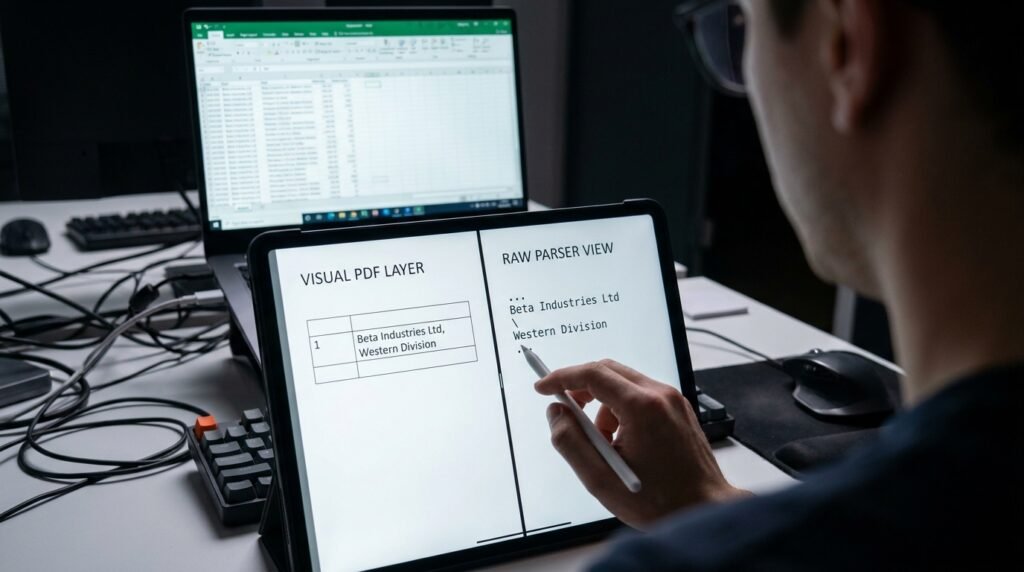
Here’s how a single soft line break corrupts everything beneath it.
A two-line company name becomes a phantom row What you see (3 records): Acme Corp | 2026-01-04 | 1,200 Beta Industries Ltd, | 2026-01-05 | 980 Western Division | | Cordova LLC | 2026-01-06 | 1,450
What the parser pulls (4 rows): Acme Corp | 2026-01-04 | 1,200 Beta Industries Ltd, | 2026-01-05 | 980 Western Division | | <- phantom Cordova LLC | 2026-01-06 | 1,450 |
The company name wrapped onto a second line in the original, so the parser read that second line as its own record with an empty date and amount. Every total below it is now off, and nothing looks broken at a glance. This is why naming the structure up front, telling the model that company names may wrap and each record stays on one row, fixes more than any amount of re-asking ever will.
How to see the invisible formatting
You can’t fix what you can’t see, and most of this is built to stay unseen.
Two quick checks expose almost every trap before you waste a single prompt on the file.
- Try to select the table text with your cursor. If nothing highlights, it’s a scanned image, and you need OCR before anything else will work.
- Copy a chunk of the table and paste it into a plain-text editor, not a word processor. Stray line breaks, collapsed spacing, and columns bleeding into each other all show up instantly as broken lines.
That second check is the one I run every time. Plain text hides nothing, so the moment you see a single record split across two lines, you’ve found the reason your extraction keeps drifting.
A pre-flight before you extract anything
Running this short list first saves more time than any clever prompt.
- Confirm there’s a text layer by selecting some text. If nothing highlights, run OCR before anything else.
- Paste a sample into a plain-text editor and look for split records or columns bleeding together.
- Count the columns and note their order, so you can tell the model exactly what to expect.
- Check for page headers and footers that will land in the middle of the data.
- Decide whether a cleaner source exists before you commit to the PDF at all.
Five checks, maybe two minutes. They turn a vague ‘the AI keeps messing this up’ into a specific problem you can name and then fix.
Fixes that actually work

Work from the cheapest fix to the heaviest, and stop as soon as one holds.
- If there’s a text layer, copy the table into plain text or a blank sheet, fix the obvious row splits by hand, then hand the cleaned version to the AI. Pre-cleaning beats re-prompting every time.
- Describe the structure to the model explicitly. ‘This is a five-column table: name, date, amount, status, notes. The notes field may wrap to several lines; keep each record on one row.’ Naming the columns and warning about wrap repairs most misalignment.
- Pull one page or one column at a time. A narrow request is far more reliable than ‘extract the whole table,’ especially across page breaks.
- For scanned files, run OCR first, then verify the digits by hand before you trust a single figure.
The theme across all four is the same: you fix the input, not the prompt. Re-wording your request to a model that’s reading a scrambled page only changes how it scrambles. Repairing the page, or describing it accurately, is the only thing that moves the result.
What 'extract this table' should actually say
The request itself is usually too vague to succeed.
‘Pull the table out of this PDF’ tells the model nothing about the shape it’s hunting for, so it falls back on guessing. A request that names the structure gives it a target to hit.
An extraction prompt that names the structure Below is text copied from a PDF table. Rebuild it as a 5-column table: Company | Date | Amount | Status | Notes.
Rules: – One row per company. The Notes field may wrap across several lines; keep it attached to its own row. – If a cell is blank, leave it blank. Invent nothing. – Output clean CSV, comma-separated.
Text: “”” [paste the copied table] “”” |
Every line there closes a door the model would otherwise guess through: how many columns, which field wraps, what to do with blanks, and the exact output format. Pasted blind, the same table scrambles. With this scaffolding around it, the extraction usually holds.
Tools that beat a chat model for tables
A general chat assistant is the wrong first tool for a big table.
Purpose-built extractors keep the structure that a pasted-text approach throws away. A spreadsheet’s own import feature can often open a born-digital PDF table with its columns intact. Dedicated table-extraction tools read cell boundaries from the page layout instead of guessing from the spacing. For scans, an OCR step with table support beats feeding a screenshot to a chat model. So keep the chat assistant for small tables, for tidying text you’ve already pulled out, or for the times you genuinely have no cleaner source. The order of preference is plain: a real data export first, a table extractor second, the chat model last.
When to stop fighting the PDF
Sometimes the format is the wrong battle to pick.
If the same data exists somewhere as a spreadsheet or a CSV, go get that instead of wrestling it out of a PDF. If it’s a report you receive on a schedule, ask the sender for a data export, which costs them nothing and saves you the whole problem. And for a born-digital table, a spreadsheet’s own import feature or a dedicated PDF-to-CSV tool usually preserves structure better than pasting text into a chat model. A general chat assistant is the least reliable path for a big table, so reserve it for when you have no cleaner source.
Questions people actually ask
Why does it work on a small table but fail on a big one?
Two reasons stack up. Large tables are likelier to span pages, where repeated headers and footers get injected mid-data, and a single early row-split offsets every row after it. The longer the table, the more an early misalignment compounds into a complete scramble.
The numbers came out wrong, not just the layout. Why?
That usually points to OCR on a scan, where similar shapes get confused, a 0 read as O, a 1 as 7, a 5 as 6. Thousands separators and decimal points also drop out easily. Whenever the figures matter, re-check the totals against the source by hand.
Should I screenshot the table and use image input instead?
It sometimes helps with layout, because the model sees the visual grid rather than a stream of characters. The catch is that an image route runs through OCR, which brings back the digit-misread problem. For accuracy, a real text layer beats a picture.
Is there a format the AI handles best?
A clean CSV, or a simple block with one record per line. The closer you get the input to that shape before you ask, the more reliable the result. Most extraction failures are really input-shape failures.
Can I just ask the model to be more careful?
It rarely helps, because the issue is missing information rather than missing effort. The model can’t see that a name wrapped to two lines or that a header was merged across columns; it only has the characters it was handed. Telling it the structure, ‘five columns, the notes field may wrap,’ gives it something concrete to act on. Telling it to try harder gives it nothing new to work with.
Diagnose before you re-prompt
Next time an extraction comes out scrambled, resist sending another prompt. Select the text to check whether it’s a scan, paste a sample into a plain-text editor to find the hidden line breaks, then either pre-clean the table and name its columns, or switch to a proper data export. Re-prompting a broken input only hands you a differently broken output.

Hi I’m Muzammil Haqani. I’m a content creator and AI expert with 3+ years of experience exploring and writing about artificial intelligence and technology. Through this blog, I share tutorials, insights, and practical guides to help readers understand and use AI tools effectively in their everyday lives.