
How webhooks talk to AI text generators in background automations
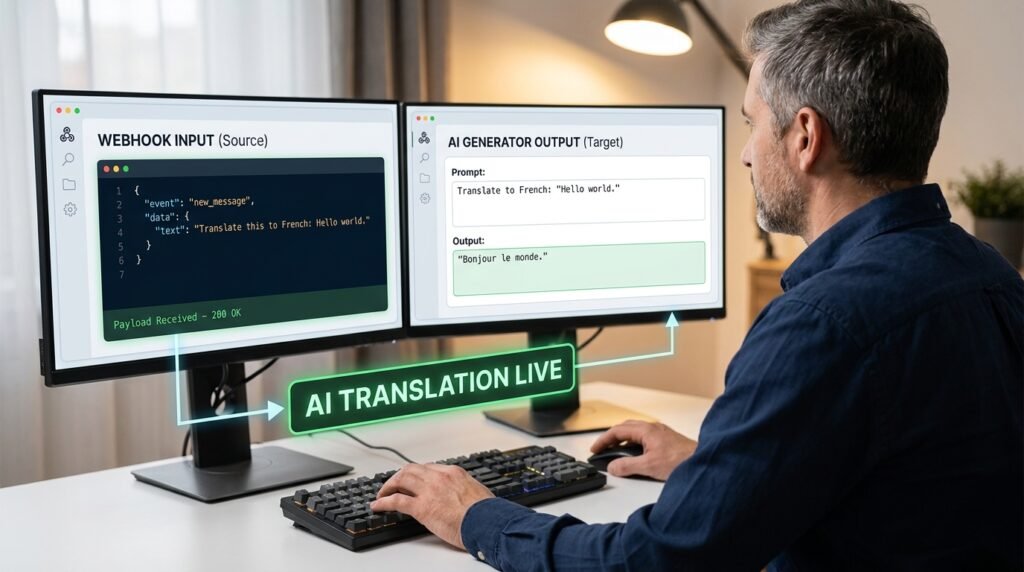
A webhook is just a small HTTP message one app sends to another when something happens. To wire it to an AI text generator, the only real work is translating that incoming message into the shape the AI’s API expects, and the incoming message is almost always JSON. Once you can read JSON and write a single API call, you’ve got the whole pattern. No code is strictly required, but knowing what’s moving where keeps you out of the weeds when an automation tool hides it.
The shape of what's actually moving
A webhook isn’t magic, and JSON isn’t scary.
When an app does something interesting, like a form being submitted, a webhook is the way that app says ‘hey, this happened, here’s the details.’ It’s an HTTP POST request sent to a URL you give the app. The body of that request carries the details, and that body is almost always JSON: a structured block of named fields and values. Receiving the webhook means catching that POST. Reading it means pulling the fields you care about out of the JSON. Sending it on to an AI generator means making a second HTTP POST, this time to the AI provider’s URL, with a different JSON body that holds your prompt.
The whole pipeline is one app to your automation tool to the AI provider, and back. Three nodes, two hops, JSON the whole way.
The translation table
Here’s what each chunk of JSON means in plain words.
Field you’ll see | What it is | Example | Why the AI needs it |
“event” | the kind of thing that happened | “form.submitted” | tells you whether to act |
“id” | a unique identifier for this event | “evt_8h2k” | lets you dedupe and log |
“created_at” | when the event fired | “2026-06-04T14:02Z” | context for the AI reply |
“data” | the actual payload | {…form fields…} | the content to act on |
“data.name” | a field inside the payload | “Sara Patel” | personalize the reply |
“data.message” | the message text | “need help with…” | this is what the AI reads |
Almost every webhook follows that shape: a few top-level fields naming the event, and a nested ‘data’ object holding the meat. Once you can read a few examples, the structure becomes predictable.
The two JSON bodies, side by side
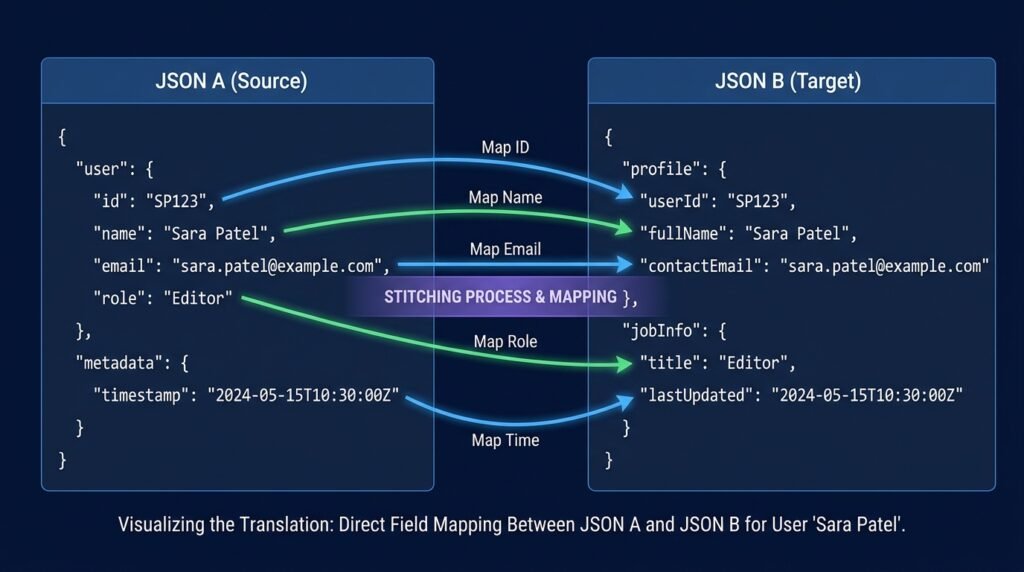
This is the whole translation. Read the incoming webhook on the left, write the AI request on the right.
The webhook arriving at your automation INCOMING WEBHOOK BODY (from the form app): { “event”: “form.submitted”, “id”: “evt_8h2k”, “created_at”: “2026-06-04T14:02Z”, “data”: { “name”: “Sara Patel”, “email”: “sara@example.com”, “message”: “We need help integrating your API” } } |
The request your automation sends to the AI OUTGOING AI REQUEST BODY (to the AI provider): { “model”: “your-chosen-model”, “messages”: [ { “role”: “system”, “content”: “You draft polite, short replies…” }, { “role”: “user”, “content”: “Reply to Sara Patel who wrote: We need help integrating your API” } ] } |
Two values from the webhook, data.name and data.message, slotted into the AI request body. The model field tells the provider which AI to use, and the messages array carries your system rules and the user request. That’s the entire translation, and every automation of this shape is a version of it.
Why JSON, and not just plain text
There’s a reason every modern web tool moved to JSON for talking to each other.
Plain text is easy for a person to read and a nightmare for software to parse, because a program has to guess where one field ends and the next begins. JSON gives you named fields with clear types: strings in quotes, numbers without, lists in square brackets, nested objects in curly braces. Once you know those four shapes, you can read any JSON payload on the planet. It looks dense the first time you see it, and the rules underneath are actually fewer than the punctuation rules of English. Spend twenty minutes reading real payloads and the discomfort goes away.
Synchronous vs asynchronous: which one is yours?
Two ways an AI step can run, and they behave very differently.
In a synchronous call, your automation sends the request, waits for the AI to finish, and uses the result in the next step. This is the default in most tools and the simplest pattern. The catch is that a long generation can push you past your platform’s per-step timeout, and the whole automation either fails or stalls. An asynchronous call hands off the work, gets back a task id, and checks for the result later. It’s heavier to wire up, since you need a second step that polls or a separate webhook to receive the result, and it scales better for long jobs and bulk processing. For most daily automations, synchronous is the right choice. If you’re feeding the AI long documents or running thousands of calls, learn the asynchronous pattern your provider offers.
Rate limits, retries, and the failure you'll actually see
Every AI provider caps how often you can call it.
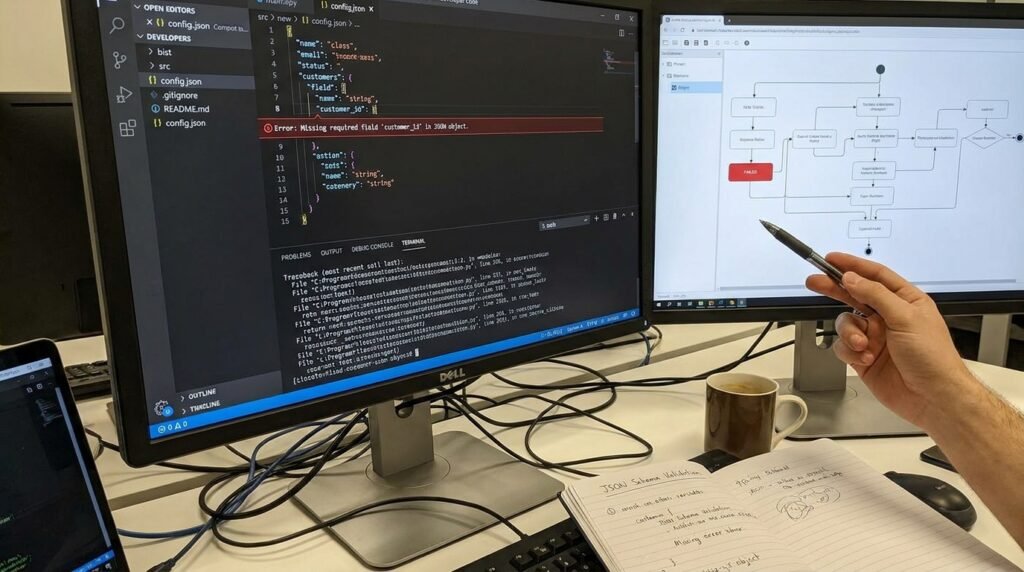
Hit the cap and the API returns an HTTP 429, which means ‘slow down.’ On a busy automation, this is the failure you’ll bump into before any other, and it’s also the easiest to handle: configure the AI step to retry after a short delay, ideally with the delay doubling on each subsequent failure, a pattern called exponential backoff. Most platforms have this as a checkbox; turn it on. Beyond that, set a sensible max-retry count, since retrying forever can mask a real outage. And separate transient failures, like a 429 or a 5xx, from permanent ones, like a 401 (bad API key) or a 400 (bad request body). Retrying a malformed request just wastes calls.
How the automation tool hides the plumbing
In a no-code platform, you don’t write either of those JSON bodies by hand.
The trigger step parses the incoming webhook for you and exposes the fields as a friendly list, often as something like {{data.name}} you can click into the next step. The AI step exposes its own form: pick a model, fill in the system message, write the user message and reference the webhook fields with those tokens. The platform builds the outgoing JSON for you and POSTs it. The two JSON bodies above still exist; you’re just clicking on a UI that builds them. Knowing the shape underneath is what makes the rare debug moment quick instead of mysterious.
The response comes back the same way
The AI’s reply is JSON too.
The provider’s response looks like a small JSON object with metadata, usage counts, and a content field holding the text the model produced. Your next step usually drills into that content field, often something like {{response.choices.0.message.content}} or the equivalent token your platform exposes, and feeds it into the action you actually wanted, sending an email, posting to chat, writing to a sheet. The same picking-fields-out-of-JSON skill works for both ends of the call. Once you can read incoming JSON, the response JSON is the same skill in reverse.
The four real failure points
Almost every webhook-to-AI bug is one of these.
- The webhook never arrived. The URL is wrong, the sending app’s signing secret has rotated, or the firewall ate it. Check the sending app’s delivery log first; if there’s no record of a successful send, the issue is upstream of you.
- The webhook arrived but a field is missing. The field name changed in the sending app, or this particular event type just doesn’t carry it. Inspect the raw incoming JSON, not the friendly token names, since the platform’s display sometimes hides nulls.
- The AI request was rejected. Usually an authentication issue (wrong or expired API key) or a malformed body (a stray quote, a missing comma). Most providers return a clear error message; read it before retrying.
- The AI replied with text that doesn’t parse cleanly downstream. If your next step expects JSON from the model and gets prose with code fences around it, the prompt needs to say ‘return JSON only’ and the parsing step needs to strip the fences.
Idempotency: stop the same event running twice
Webhooks sometimes arrive twice. Your automation needs to be safe when they do.
Most webhook senders will resend an event if they didn’t see a successful response quickly enough, even if you actually did process it. Without protection, that means an AI call, a Slack post, or a charge happening twice for the same event. The fix is to use the event id in the payload as an idempotency key: keep a small table of ids you’ve already processed, and have the first step of your automation exit if it sees a duplicate. Most modern automation tools have an idempotency option built in, often called ‘deduplication’; turn it on and point it at the event id field. It’s the cheapest reliability improvement in the entire pipeline.
Security: the parts that matter most
A webhook URL is effectively a back door if you publish it.
- Treat the webhook URL as a secret. Don’t paste it into a public form or commit it to a public repo.
- Use the signing secret. Most senders provide a header you can verify, like X-Signature, so your automation can confirm the message really came from the sender it claims to be from.
- Validate the event type before you act. A receiver that processes any payload it gets is a receiver waiting to be abused.
- Don’t log the full payload if it carries personal data. Log the event id and a short summary, not raw emails or names.
- Rotate keys on a schedule, and immediately if a teammate with access leaves.
A worked example: form submit to an AI auto-reply
Here’s the whole pipeline end to end, in plain words.
- A user submits a form on your site. The form provider sends a webhook with the fields shown above to your automation tool’s webhook URL.
- Your automation tool catches the POST and parses the JSON. The fields appear as tokens you can click on.
- An AI step is configured: model picked, system message set to your tone rules, user message templated with the form fields.
- The AI step makes its own HTTP POST to the provider’s API behind the scenes and waits for the response.
- The response comes back as JSON with the generated reply inside. The next step picks the text field out of it.
- An email step sends that text to the address from the form, with the subject set to a short summary.
- A logging step writes the event id, the submitter, and a short note to a sheet, in case you need to audit later.
Two HTTP requests, one JSON parse, one JSON build. That’s the whole shape of a webhook-to-AI automation, dressed in friendly UI buttons.
What logging earns its keep
Log enough to debug six months from now, not so much that you create a privacy problem.
The shape I keep: event id, event type, timestamp, the worker or automation name, the outcome (success / retry / failure), and the duration. Personal data stays out of the standard log. If you genuinely need a payload sample for debugging, store it in a separate, restricted log that auto-expires after a few days, and never include passwords, API keys, or full personal identifiers. Logs that read like a payments database are a liability the moment anything goes wrong.
Questions people actually ask
Do I need to know JSON to set this up?
Not formally, but you’ll be faster if you can read it. Spend ten minutes looking at a real webhook payload from your sending app, and you’ll recognize the curly braces, the quoted keys, and the nested ‘data’ object. That’s enough to debug the days when the friendly token-picker shows you nothing.
What’s the difference between a webhook and an API?
A webhook is push, the sending app calls you when something happens. An API call is pull, you ask the other app for something. A webhook-to-AI automation usually does both: catches an incoming webhook, then makes an outgoing API call to the AI provider, then often makes another API call to deliver the result. Same plumbing, different direction.
Can the AI provider receive webhooks directly, with no automation tool in between?
Generally no. AI providers expose APIs you call into; they don’t expose endpoints for arbitrary apps to POST events at. The automation tool, or a small server you write, exists to do the translation. That’s why it shows up in every diagram.
Why does my AI step time out on long payloads?
Two reasons: large prompts take longer to generate, and your automation platform has its own per-step timeout. If the payload is big and you don’t need all of it, trim before the AI step, sending only the fields the model actually needs. If you do need it all, switch to a model with appropriate context limits and check whether your platform offers a longer timeout for AI steps specifically.
How do I see the JSON payload when my tool only shows tokens?
Most automation platforms have a ‘raw output’ or ‘view source’ option somewhere on the trigger step that reveals the full incoming JSON, even when the main view shows you the friendly token list. Find that option early; it’s the difference between debugging in a minute and debugging in an hour. If the platform truly hides it, set up a free webhook-inspector URL temporarily, point your sending app at it, and read the raw payload there before pointing it back to your real automation.
What if I want to swap AI providers later?
Keep your automation built around the structured fields you pull from the webhook, not around the specific provider’s request shape. The translation step changes when you swap providers; the input doesn’t. Tools that let you template the AI body separately from the rest of the chain make this swap a five-minute job instead of a rewrite.
Send one webhook, by hand, before you wire anything
Before you build the automation, point your webhook URL at a simple test endpoint and trigger one real event, a real form submission, a real CRM update. Look at the raw JSON that arrives. Read the field names. Then go build the AI step against the field names you actually saw, not the ones you assumed would be there. You’ll catch every naming surprise on day one, and the rest of the wiring becomes mechanical.
Sehr guter Beitrag! Für KI-Video empfehle ich Pixwit: /. Pixwit