
Preventing AI from inventing data rows during spreadsheet autofill
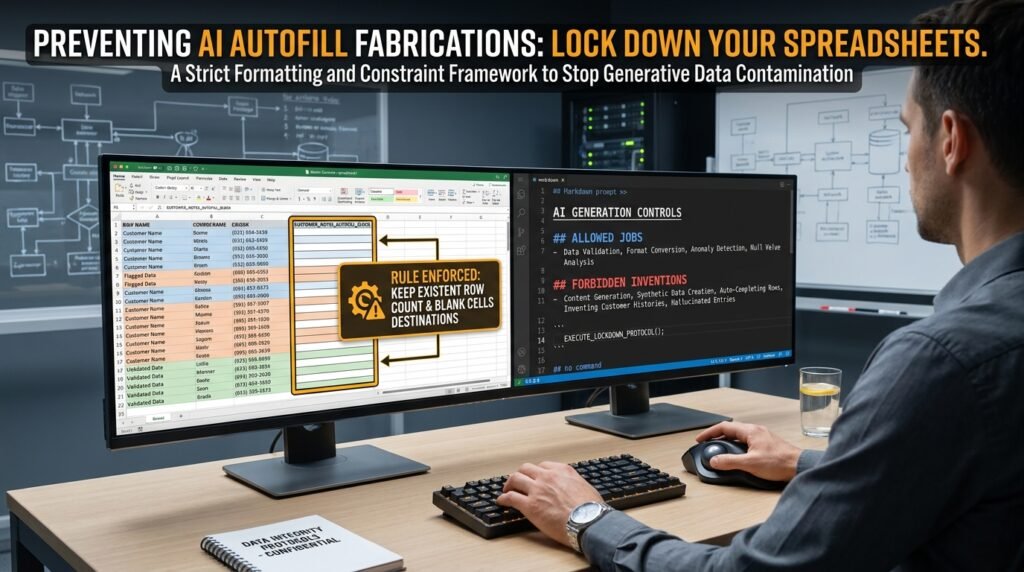
When you ask AI to continue a pattern in a sheet, it doesn’t know whether you want it to clean what’s there or to generate what’s missing. By default, it generates, because that’s what ‘continue the pattern’ sounds like to a language model. The fix is to tell it explicitly, in words it can act on, that its job is restricted to formatting and sorting, never to filling. Every safe autofill prompt is built around a single rule: empty cells stay empty unless I say otherwise.
Why 'continue this' is a generative instruction
Pattern continuation is a writing task in the model’s eyes.
Spreadsheet autofill features that predate AI were strictly deterministic: copy a formula, increment a sequence, repeat a value. AI-powered autofill changed the contract. The model reads the existing rows as examples and the empty cells as a prompt, and it generates plausible values to fill them. So a column of real customer names with three blanks at the bottom invites the model to invent three more plausible-looking names. Plausible isn’t real, and a name that didn’t come from your customer list will sit in your CRM until someone notices it doesn’t have an account.
This is a feature, not a bug, in the tool. The model is doing what generative AI does. The job for you is to wrap it in rules that prevent generation when you actually wanted reformatting.
Three jobs that get confused with each other
Name the job before you write the prompt.
Job | What you actually want | Risk if AI thinks it’s a different job |
Cleaning | Normalize case, trim spaces, fix typos | Model ‘fixes’ a value to something invented |
Sorting | Reorder rows or split into columns | Safe; mostly mechanical |
Formatting | Standardize dates, numbers, units | Model picks a format you didn’t agree to |
Filling | Generate values for empty cells | Plausible nonsense lands in your data |
Inferring | Compute a value from other columns | Safe when the rule is explicit |
Cleaning, sorting, and formatting are the safe jobs. Filling is the dangerous one. Inferring sits in the middle: safe when the rule is computable, dangerous when the rule is ‘guess from context.’ Decide which job you’re asking for, then write the prompt to do that one job only.
The constraint-setting prompt
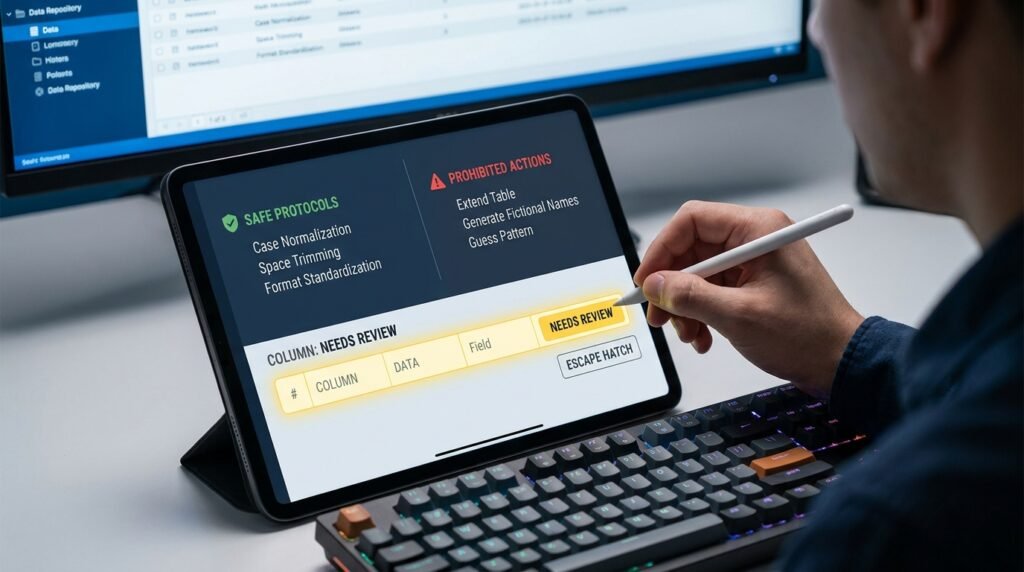
This is the wrapper that makes a generative tool behave like a deterministic one.
A wrapper that pins the model to safe jobs You are working with the spreadsheet data below.
YOUR JOB IS LIMITED TO: • cleaning (case, trimming, fixing obvious typos) • sorting and reorganizing the rows • standardizing format (dates, numbers, units)
YOU MUST NOT: • fill any empty cell with a generated value • invent names, dates, IDs, amounts, or addresses • guess at a value that ‘fits the pattern’ • extend the table with new rows
For every empty cell, leave it empty. If something is unclear, leave it unchanged and mark the row in a new ‘flag’ column with ‘NEEDS REVIEW’.
Output: the cleaned table only. Same number of rows. Same column structure. No new rows, no new tags.
Data: “”” [paste the sheet text or CSV here] “”” |
Notice the structure: positive list of allowed jobs, explicit list of forbidden jobs, a safe place to land for anything uncertain. The ‘NEEDS REVIEW’ column is the escape hatch that lets the model admit it doesn’t know without inventing. Without that escape, ambiguous rows get plausible guesses.
Inferring is the gray-area job
Some ‘fills’ are actually safe, and the safety lives in the rule.
Filling a ‘region’ column based on a ‘country’ column you provided is inferring, not inventing. The rule is computable: country X maps to region Y. The model isn’t guessing; it’s applying a lookup that you could just as well do with a formula. The line between safe inferring and dangerous inventing is whether the value can be derived deterministically from the other columns the row already has. If yes, and you state the rule, the fill is safe. If no, and the model has to imagine, the fill is invention dressed up as inference. State the rule explicitly or don’t allow the fill at all.
How to verify the model didn't invent
Trust nothing; check three things.
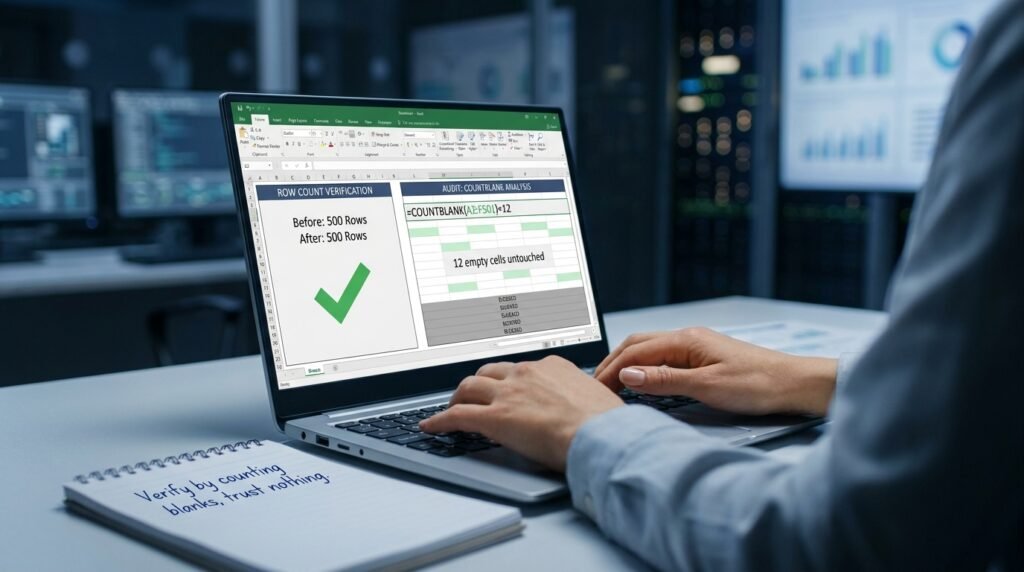
- Row count. Before and after. They must match exactly. Any extra row is a generated row, full stop.
- Empty-cell count by column. If a column had 12 empty cells before and 7 after, the model filled five somewhere. Investigate every one.
- Diff the changed cells. For everything the model touched, compare old value to new value. Cleaning should be small changes (case, spacing). Anything else, like a name swapped for a different name, is invention.
Spreadsheets make all three of these easy. A simple COUNTBLANK or COUNTIF before and after the run gives you the numbers in one second. A side-by-side comparison with conditional formatting shows the diffs visually. Five minutes of checking, and you catch the inventions that would have lived in your data for months.
The two safer alternatives to AI autofill
For some jobs, the right answer is to not use AI at all.
If your fill is computable, a formula does it better. SUBSTITUTE, PROPER, TRIM, IFERROR, and VLOOKUP cover most cleaning, sorting, and inferring needs without any model involvement, and they fail predictably when the rule doesn’t match. If your fill is genuinely about adding rows from a known source, like pulling new customer names from your CRM, use the integration rather than the autofill. AI autofill is the right tool when the cleaning rule needs natural-language judgement, like deciding that ‘NYC’ and ‘N.Y.C.’ are the same city, where a formula falls short. For anything mechanical, keep it mechanical.
Why a backup copy isn't optional
Undo doesn’t always reach the AI step.
Spreadsheet undo histories are reliable for typing and pasting and unreliable for bulk operations triggered by an add-on or an external tool. An AI autofill that ran on 500 rows can be impossible to reverse cleanly with a single Ctrl+Z, especially if you’ve made any other edits since. Duplicating the sheet to a backup tab before running anything generative is the cheapest insurance you can take, and it’s the move I see skipped most often. Two seconds of right-click-duplicate is the difference between a quick recovery and reconstructing your data from a week-old export.
A pre-run checklist for safe AI autofill
Run this before you click anything.
- I’ve named the job (cleaning, sorting, formatting, inferring) and ruled out filling.
- I have a backup copy of the sheet, separate from the live one.
- The prompt explicitly forbids generating new rows or inventing values.
- There’s a ‘NEEDS REVIEW’ escape hatch the model can use.
- I have a before/after row count and column-blank count ready to compare.
Five checks, two minutes. Skipping them once is how you get a Tuesday morning where someone asks why your CRM has a customer named John Sample.
Questions people actually ask
My tool’s ‘AI autofill’ button doesn’t take a prompt. What now?
Some built-in autofill features apply a fixed behavior with no prompt you can edit. For those, the safe pattern is to never run them on a column you’d rather have empty rows in than wrong values. If you need control over the rules, paste the data into a chat tool with the wrapper above, run it there, and paste the cleaned output back. Slower, but you keep the constraint.
Why did the model invent values even when I said ‘don’t’?
Usually the prompt told it not to invent but didn’t give it anywhere else to go. ‘Don’t guess’ without a ‘leave it blank or mark it’ rule still ends in guesses, because the model interprets the silent option as ‘do your best.’ Add the explicit fallback, and the inventions mostly stop.
Can I let the model fill rows where it’s ‘highly confident’?
Don’t. Confidence isn’t accuracy, and a model’s self-reported certainty about an invented value is meaningless. If a value is computable, use a formula. If it’s not, leave the cell empty and have a human fill it. The middle ground, ‘fill it if you’re sure,’ produces the worst outcomes because it sounds reasonable and silently introduces fake data.
What about generating sample data for testing?
That’s the one place AI autofill is doing what you actually want, since you’re explicitly asking for plausible fictional rows. Just mark the data as test data clearly, store it in a sheet that’s clearly labeled, and never mix it with the real table. The disaster scenario is a ‘test’ row that quietly migrates into production because nobody marked it.
How do I know if my tool is in ‘clean’ or ‘generate’ mode?
Read the tool’s docs for that feature, since the naming varies. The reliable signal is the row count: if the action can add rows to your table, it’s a generative feature. If it can only modify cells in existing rows, it’s a transformation feature, which is safer by design. Choose generative features knowingly, not by accident.
Can I let the model fill cells if the source is an attached document?
That’s grounded fill, not invented fill, and it’s much safer when done carefully. Anchor every filled value to a quoted span from the source, and have the model mark any cell where the source didn’t actually cover the field. The risk shifts from invention to misquotation, which is easier to catch in a spot-check than a plausible-sounding fabrication is.
Start with empty-cell protection on
On the next sheet you hand to AI, wrap the prompt around three rules: explicit list of allowed jobs, explicit list of forbidden ones, and a ‘NEEDS REVIEW’ escape. Snapshot the row count and the column blanks before you run. Compare after. The whole guard takes two minutes to set up and stops the slow, quiet contamination that AI autofill produces when it’s left to its own preference for generating.

Hi I’m Muzammil Haqani. I’m a content creator and AI expert with 3+ years of experience exploring and writing about artificial intelligence and technology. Through this blog, I share tutorials, insights, and practical guides to help readers understand and use AI tools effectively in their everyday lives.