
Using AI add-ons to clean messy text formats in Google Sheets
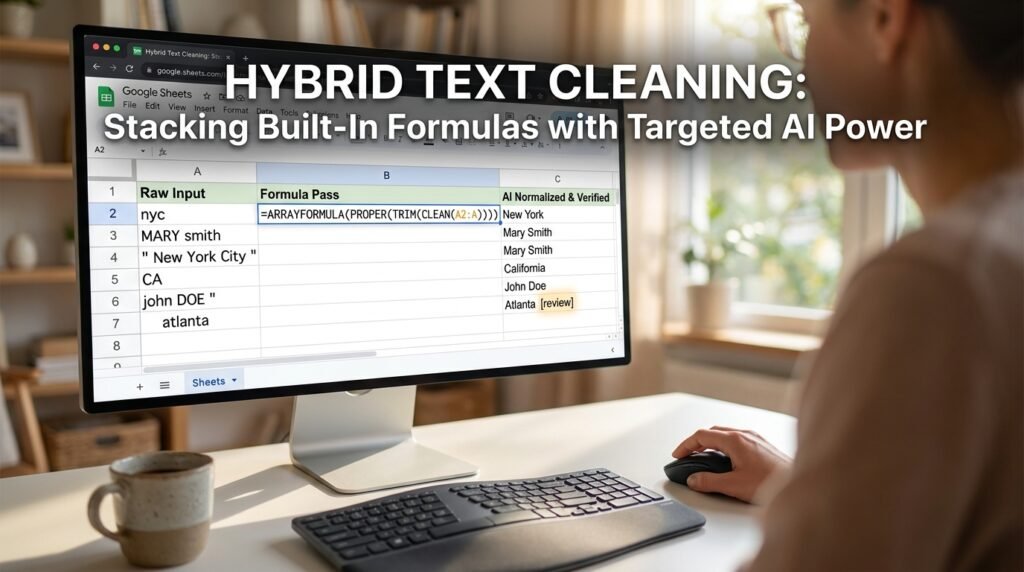
Most messy-text problems in Google Sheets don’t need AI at all. A handful of built-in functions fix capitalization and stray spaces in seconds, without sending your data anywhere. AI add-ons earn their place for the messes a formula can’t describe, like a city typed ten different ways. Knowing which job belongs to which tool is what saves you the afternoon.
Start by naming the mess
You can’t clean what you haven’t classified.
Before installing anything, sort what’s actually wrong with your column. Each kind of mess has a natural home, and only two of them genuinely call for AI.
Mess type | Example | Where it gets fixed |
Inconsistent case | MARY smith, john DOE | Function (PROPER) |
Stray spaces | ‘ hello world ‘ | Function (TRIM) |
Non-printing characters | line breaks pasted from a webpage | Function (CLEAN) |
Mixed delimiters | Smith, John; Doe-Jane | Function, sometimes AI |
Same thing, many spellings | NYC vs New York vs N.Y. | AI add-on |
Free text needing judgment | addresses in one cell, any order | AI add-on |
The first three are pure formula territory. The last two are where an AI add-on adds something real, because they need a decision a formula can’t encode.
The fixes that don't need AI, done first
These built-ins handle the bulk of real messes, and they never send a single cell off your sheet.
Function | What it does | Reach for it when |
TRIM | Strips extra spaces, including doubled ones | Pasted text has stray spacing |
CLEAN | Removes non-printing characters | Line breaks or tabs came in from the web |
PROPER / UPPER / LOWER | Sets capitalization | Case is inconsistent across rows |
SUBSTITUTE | Swaps one substring for another | Standardizing a delimiter or a known typo |
REGEXREPLACE | Pattern-based find and replace | The mess follows a predictable pattern |
SPLIT | Breaks one cell into several by a delimiter | Several values are jammed into one cell |
Most of the time you can stack the first three into one formula and be done:
=ARRAYFORMULA(PROPER(TRIM(CLEAN(A2:A)))) |
That reads inside out. CLEAN strips the invisible characters, TRIM collapses the spacing, then PROPER fixes the case, across the whole column at once. If this handles your column, you don’t need an add-on, and you shouldn’t install one.
REGEXREPLACE handles more than people expect

One function quietly covers a whole class of messes.
Before you decide a cleanup needs AI, check whether the mess follows a pattern, because patterns are exactly what REGEXREPLACE exists for. It finds text by shape instead of by exact match, so one formula can fix what SUBSTITUTE would take five passes to handle.
Pattern fixes that need no AI at all =REGEXREPLACE(A2, “[^0-9]”, “”) keep digits only =REGEXREPLACE(A2, “\s+”, ” “) many spaces become one =REGEXREPLACE(A2, “[^\w\s]”, “”) drop punctuation, keep words =REGEXREPLACE(A2, “^\s+|\s+$”, “”) trim both ends |
Phone numbers full of brackets, codes peppered with stray symbols: each has a shape, and a shape is a job for a pattern, not a model. Keep the AI in reserve for the messes that follow no pattern at all.
The normalization logic map
When you do reach for an AI add-on, run the text through the same fixed order a careful person would. Here’s the pipeline I follow, whether a step is a formula or a prompt.
Figure 1. The order to clean a cell, step by step RAW CELL │ ▼ [1] STRIP non-printing chars -> CLEAN() │ remove line breaks + tabs ▼ [2] COLLAPSE whitespace -> TRIM() │ single spaces, none trailing ▼ [3] FIX case -> PROPER / UPPER / LOWER │ Title Case for names ▼ [4] STANDARDIZE delimiters -> SUBSTITUTE() │ settle on one separator ▼ [5] RESOLVE meaning (AI step) -> prompt: map variants │ to one canonical form ▼ CLEAN CELL -> paste as values, don’t leave it live |
Order matters more than it looks. Fixing case before you strip line breaks can leave odd capital letters mid-word where a break used to be. And meaning gets resolved last, in step 5, because it’s the only step that can’t be cleanly undone once it’s wrong.
What an AI add-on does that no formula can
This is the line that decides whether you need one at all.
A formula matches characters. An AI add-on can weigh meaning, and that opens a short list of jobs no amount of nesting will solve.
- Fuzzy matching. Seeing that ‘Bob’s Diner’ and ‘Bobs Diner LLC’ are the same business, where an exact match reads two unrelated strings.
- Standardizing entities. Folding ‘USA’, ‘U.S.’, and ‘United States’ into one form, including spellings you never listed in advance.
- Classifying free text. Sorting a column of customer notes into ‘complaint’, ‘question’, or ‘praise’ by what they actually say.
- Pulling fields from a sentence. Lifting the date and the amount out of ‘paid 49.99 on the 3rd’ into their own columns.
The common thread is judgment about what the text means, not just which characters it holds. If your cleanup is about meaning, an add-on earns its keep. If it’s about characters, a formula is faster and free.
Prompt sequences for the AI step
Steps 1 through 4 are formulas. Step 5 is the only one you write prompts for.
The mistake is asking for everything in one go. Chain narrow prompts instead, and force the model to show its work in two columns so you can check it.
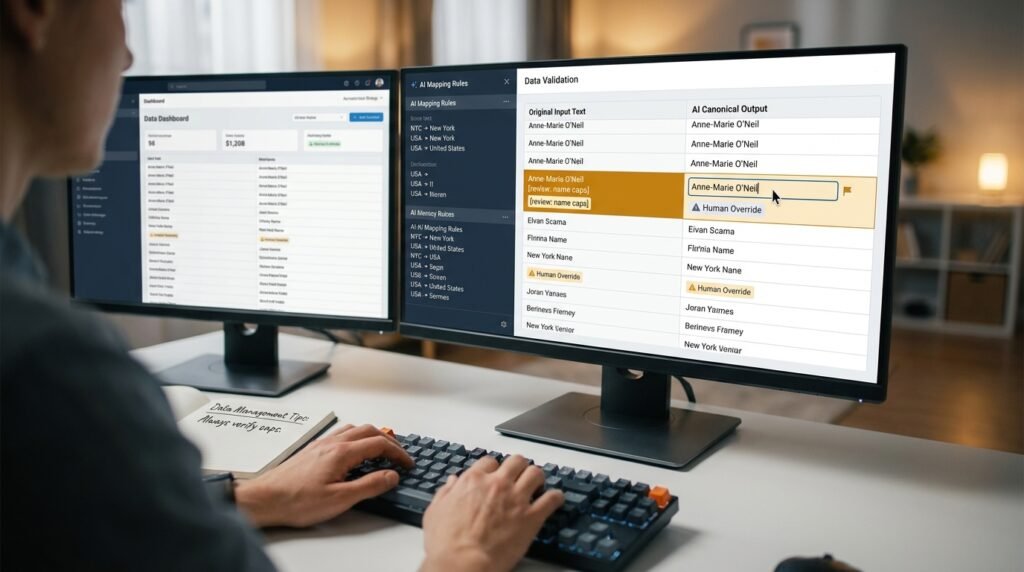
Prompt A: map messy variants to one value Here is a column of values, one per line. Map each to a single canonical form. Output two columns: original | canonical. If you’re unsure, copy the value unchanged and add “[review]”. Do not guess.
Rules: – “NYC”, “N.Y.”, “New York City” -> “New York” – Leave anything not covered by a rule unchanged.
Values: “”” [paste the column] “”” |
Prompt B: pull structure out of free text Each line is one address, written in any order. Return a table: street | city | postcode. If a field is missing, leave it blank. Invent nothing. “”” [paste the column] “”” |
The two-column ‘original | canonical’ output is the part that makes this safe. You can scan it in a second, the ‘[review]’ flag catches everything the model wasn’t sure about, and nothing changes silently behind your back.
Getting AI output back into the sheet without breaking it
The riskiest moment is pasting the results back.
Treat the AI output as a draft, not a replacement, and keep a clear audit trail.
- Keep your original column. Put the AI output in a new column beside it, never on top.
- Sort by the canonical column so identical values cluster, and eyeball the groups for stragglers.
- Resolve every row the model tagged ‘[review]’ by hand.
- Once it’s right, paste as values, so a later edit or an add-on recompute can’t quietly change it.
A worked example: one contact list from three sources
Say you’ve merged three exports and the names and cities are a mess.
Before NAME | CITY mary smith | nyc JOHN DOE | New York City Anne-marie O’neil | N.Y. |
Two different problems sit in this tiny block. The names need case and spacing, which is a formula job. The cities are the same place written three ways, which is the AI job.
So you run the names through =ARRAYFORMULA(PROPER(TRIM(A2:A))), then send only the city column through Prompt A.
After NAME | CITY Mary Smith | New York John Doe | New York Anne-Marie O’Neil | New York [review: name caps] |
Notice the review flag on the last name. PROPER capitalizes the first letter after any non-letter, so it gets O’Neil right but would write ‘Mcdonald’ wrong. Names with internal capitals always deserve a second look, which is exactly why the review column exists.
Mistakes that cost you later
A few habits turn a quick cleanup into a new mess.
- Running AI over the whole column when most of it is already clean. Clean with formulas first, then send only the leftovers to the model.
- Letting the model ‘fix’ values it should have flagged. Tell it to mark unknowns, not to guess at them.
- Overwriting the source column. Always work into a new column and paste values when done.
- Trusting PROPER on names. It has no idea what a real name looks like, so check the unusual ones.
How per-cell AI add-ons bill you, and why it matters
The pricing model should shape how you use the tool.
Most add-ons that run a model inside a cell charge by the call or by the token, so every cell processed and every recompute costs a fraction of a cent. That sounds trivial until a live formula recalculates across thousands of rows each time you touch the sheet. The habit that keeps the bill small is the same one that keeps the data clean: process once, paste the result as values, and never leave a model running live over a column you edit often. If you truly need it live, fence it to the handful of rows that actually change.
Check the cleanup before you rely on it
AI cleanup fails quietly, which is the dangerous way to fail.
A broken formula shows you an error. A model that standardizes a value wrongly just hands back a plausible-looking answer, and you won’t notice until it’s buried in a report. So treat a cleaned column as unverified until you’ve checked it. Sort by the canonical value and scan for anything that landed in the wrong group. Count the distinct values before and after, too: a pass that folded forty spellings into three is probably right, while one that folded them into a single value has likely merged things that shouldn’t be merged. Two minutes of checking is cheap insurance against a confident mistake.
Questions people actually ask
Which add-on should I install?
Pick on two questions, not on features. Does it keep your data inside your workspace or send it to an outside provider, and how is it billed, usually per call or per token? Several Sheets add-ons run a model on each cell; they differ mostly on data handling and price. Test one on a throwaway copy before you point it at real data.
Is it safe to send my data to an AI add-on?
It depends on the data. The add-on passes your cell contents to a model provider, so public or low-stakes data is fine. For anything confidential, check your organization’s policy and the add-on’s terms first. When you’re unsure, lean on the built-in functions, which never leave your sheet.
Why does PROPER capitalize some names wrong?
Because it uppercases the first letter after every non-letter character and knows nothing about names. ‘mcdonald’ becomes ‘Mcdonald,’ not ‘McDonald.’ Fix specific patterns with SUBSTITUTE, or run the odd ones through a short AI pass with a review flag.
Can I do the whole cleanup in one formula?
Steps 1 through 4, yes, by nesting them as shown earlier. Step 5 can’t be a formula, because resolving ‘N.Y.’ to ‘New York’ is a judgment call, and judgment is the one thing a formula can’t make.
Will the cleanup update as I add new rows?
The formula steps will, if you write them over a whole-column range with ARRAYFORMULA. The AI step is a one-time pass unless your add-on offers live cell functions, and those recompute on every change, which can run up cost. For most cleanups, a one-time pass pasted as values is safer.
My column has 10,000 rows. Does that change the approach?
It changes the AI step, not the formula steps. An ARRAYFORMULA cleans 10,000 rows as easily as ten. But sending 10,000 cells to a model, one call apiece, gets slow and can cost real money, so clean everything you can with formulas first and feed the model only the genuine leftovers. On a column that size, that’s often the difference between a few cents and a surprise bill.
Clean in the right order, starting today
Pick your messiest column. Run CLEAN, TRIM, and PROPER together in one ARRAYFORMULA, then paste the result as values. Send only the still-inconsistent leftovers through a canonical-mapping prompt with a review flag, and resolve the flagged rows by hand. You’ll fix most of the column without any add-on, and you’ll spend AI only on the part that genuinely needs a decision.

Hi I’m Muzammil Haqani. I’m a content creator and AI expert with 3+ years of experience exploring and writing about artificial intelligence and technology. Through this blog, I share tutorials, insights, and practical guides to help readers understand and use AI tools effectively in their everyday lives.