
Why Copying AI Output Directly into word Processors breaks your formatting
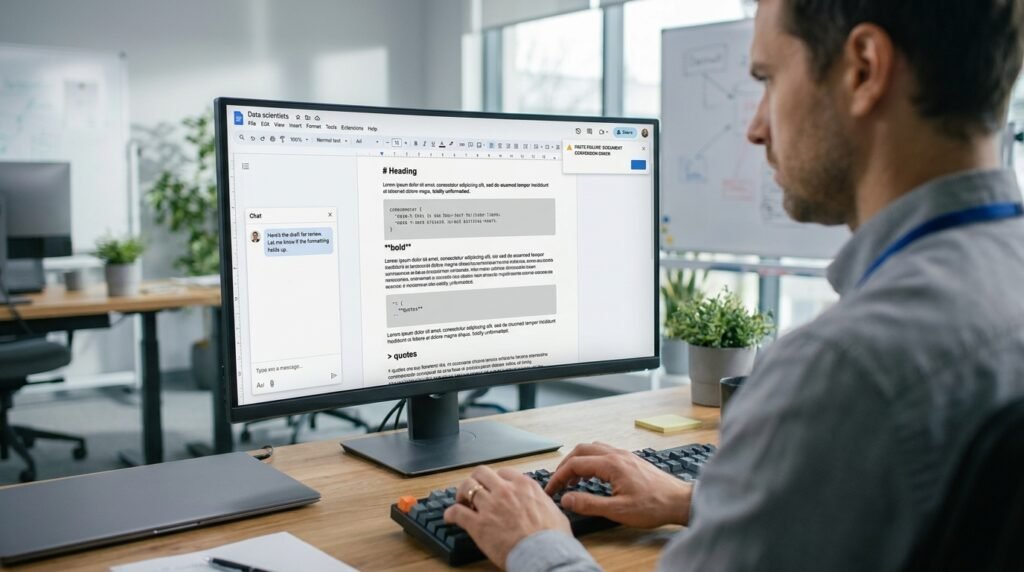
AI chats write in Markdown, and word processors don’t read Markdown. The asterisks, pound signs, and triple backticks that look like styled headings in the chat window land in Word or Google Docs as raw text, often inside gray code boxes the rich-text editor adds automatically when it sees indented blocks. The fix isn’t a setting; it’s a conversion step. Either ask the model for plain text, paste it through a converter, or use Paste Special so the editor doesn’t second-guess the input.
What's actually getting copied
The chat window is not what’s on your clipboard.
When you read an AI reply in your browser, you’re looking at HTML the chat app rendered from the model’s Markdown output. The bold reads as bold, the heading reads as a heading, the bullet list reads as a list. The moment you select and copy, the browser hands the editor a mix of plain text, HTML, and sometimes RTF, and the editor picks whichever one it thinks fits best. Word and Google Docs often pick HTML and try to preserve the styling, which is where it goes sideways: their interpretation of a code block becomes a gray box, a heading becomes the wrong heading style, and any raw Markdown the model left in the prose, like leftover asterisks, stays visible because nothing converted it.
Different editors handle this differently. Word leans harder on HTML and adds its own styling. Google Docs sometimes preserves Markdown-as-text. Notion and Obsidian actually parse Markdown on paste. None of these is wrong; they’re each doing what they were built to do. The fix has to fit your editor.
The hidden-character diagnostic table
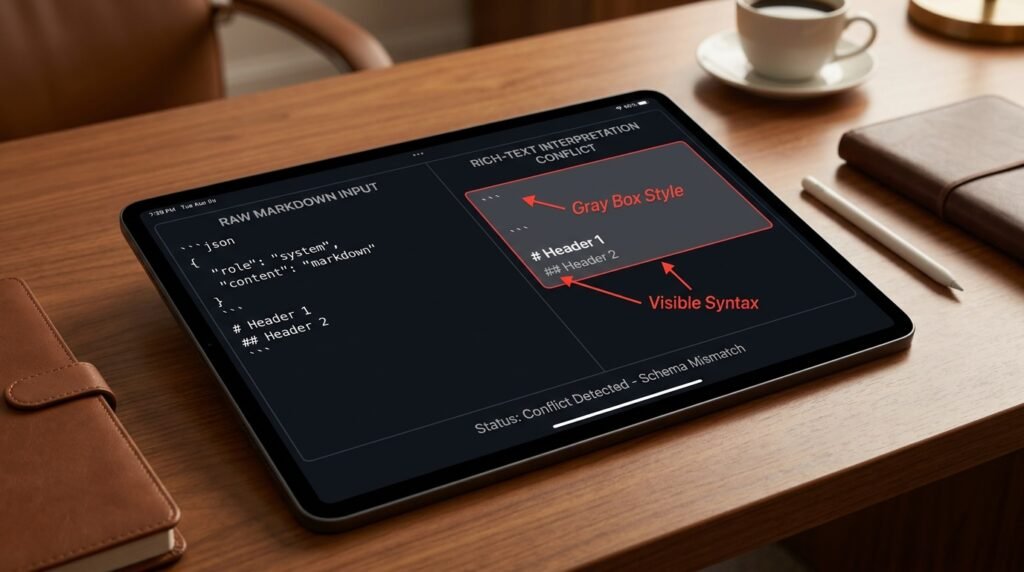
Here are the Markdown patterns that most often cause the visible mess, and what each one becomes after a paste.
In the AI output | What it means | What you see after paste |
# Heading | An H1 heading | Either real H1, or ‘# Heading’ as plain text |
bold | Bold text | Real bold, or ‘bold‘ showing the asterisks |
*italic* | Italic | Real italic, or ‘*italic*’ as plain text |
– item | Bulleted list | Real bullets, or ‘- item’ on each line |
1. item | Numbered list | Real numbers, or literal ‘1. item’ lines |
“`code“` | Code block | Gray box, often with a font change |
`inline` | Inline code | Monospaced span, sometimes shaded |
[link](url) | A hyperlink | Real link, or ‘[link](url)’ literal |
| col | col | | A table | Often a literal grid of pipes and dashes |
\u00A0 (non-breaking space) | Invisible space | Locked spacing the editor won’t reflow |
Smart quotes ” “ | Curly quote chars | Mismatched quote style across the doc |
Read down the last column. Some rows produce a clean result, some leave raw syntax visible, some create the gray code boxes everyone asks about. Which one happens depends on the editor and on tiny variations in how the chat app renders that exact piece of Markdown.
Why the gray boxes appear
This is the question that drives people to articles like this one.
Word processors interpret indented or triple-backticked content as a code block, and Word’s default code-block style is the gray-shaded paragraph with a fixed-width font. When you paste an AI reply that contained a fenced code block, even a small one like a one-line filename, the editor wraps it in that style. Worse, if the model used inline backticks for something incidental, like a `tag` or a `column_name`, those tiny spans pull in the same shaded styling and your document ends up speckled with gray. None of this is a bug; the editor is doing what its style rules say. The fix is to remove the code markers before pasting, or to strip the styling after.
Why Notion gets it right and Word doesn't
This isn’t about Word being broken; it’s about reading the same input differently.
Notion was built around Markdown, so when you paste raw Markdown into it, the asterisks and pound signs are parsed and turned into real styled blocks. Word was built around its own rich-text format and HTML, which it preserves aggressively because Word documents are usually authored, not assembled from other sources. So the same clipboard contents, the chat app’s HTML-with-Markdown-leftovers, hits two different sets of rules. Knowing which camp your editor sits in tells you how to prepare the input. Markdown-native tools want the raw Markdown. HTML-native tools want either clean HTML or plain text, never the messy hybrid the chat is actually putting on your clipboard.
Three fixes that actually work

Pick by how often you do this and how much polish the final document needs.
- Ask the model for plain text. Add ‘output as plain text, no markdown, no headings, no bullets, no code formatting’ to the prompt. The reply lands without the syntax that confuses the editor, and you style the headings yourself in Word.
- Paste through a converter. For anything you actually want as a styled doc, copy the Markdown into a converter (or a Markdown-aware editor) and export to .docx. The styles arrive correctly, and the gray boxes are gone.
- Paste Special, then style. Use Edit menu, Paste Special, Unformatted Text in Word, or Edit, Paste without formatting in Google Docs. You get plain text, no inherited styling, and you apply heading styles by hand. Slow but reliable.
My default is the first one for routine work and the second when the document has to look finished. Paste Special is the safety net for the days I forget the first one.
What to do when the document is already wrecked
If you pasted before reading this, three quick passes clean up most of the damage.
- Select all. Apply the ‘Normal’ or ‘Body Text’ style. This strips most of the styling the paste imposed.
- Open Find and Replace. Search for ‘**’ and replace with nothing. Repeat for ‘##’, ‘# ‘, ‘* ‘, and ‘`’. The literal Markdown characters disappear.
- Use Clear Formatting on any leftover gray block. In Word, the button is on the Home tab; in Google Docs, Format then Clear formatting. Apply only to the offending paragraphs, not the whole document.
Three minutes of cleanup, and the doc is usable. The reason this works is that the underlying text is mostly fine; the trouble was the styles the editor added on top.
A small habit that saves real time
Train yourself to ask for the format you actually want, not the format the chat happens to render.
Most chat apps default to Markdown because it gives the prettiest in-window display. If your destination is Word or Google Docs, that pretty default is your enemy, since you’ll spend the next two minutes undoing it. Adding ‘output as plain text with no formatting’ to your prompt costs nothing and saves the cleanup. For a chat reply you’re going to paste into Slack, ask for plain text too. For Notion or Obsidian, leave the Markdown alone. Match the request to the destination and the formatting fights mostly stop being a regular event.
Per-editor cheatsheet
The right command varies. Here are the ones I use most.
Editor | Paste plain text | Strip styling after paste |
Microsoft Word | Ctrl+Shift+V, then Unformatted Text | Home > Clear All Formatting (eraser icon) |
Google Docs | Ctrl+Shift+V | Format > Clear formatting |
Apple Pages | Edit > Paste and Match Style | Format > Clear Style |
LibreOffice Writer | Ctrl+Shift+V > Unformatted Text | Format > Clear Direct Formatting |
Save the shortcut in muscle memory and the whole problem mostly goes away. Ctrl+Shift+V is the single keystroke that has saved me the most cleanup time of any I know.
When you actually want the formatting to survive
Sometimes you do want the headings and bullets to come across. The trick is to convert, not paste.
Export the chat reply as Markdown text (most chat apps have a copy-as-markdown option, or it’s just the raw reply), and convert it to .docx through a Markdown-to-Word tool. The styles arrive as real Word styles you can edit, instead of as ad-hoc formatting the paste invented. If you’re handing the document off, you also get a consistent style across the whole reply, which a manual paste never produces.
Questions people actually ask
Why does the same paste look fine in one app and broken in another?
Because each app picks a different flavor of the clipboard. Some prefer plain text and ignore the HTML; some prefer the HTML and apply their own styles to it. Notion happens to read Markdown directly. None of them is wrong; they’re each choosing what makes most sense for that app. You can override the choice with Paste Special wherever the editor offers it.
Can I turn off the gray code boxes in Word?
You can change the ‘HTML Preformatted’ or ‘Code’ style to look like body text, and the gray goes away. The Markdown markers (backticks, pound signs) won’t vanish; only the styling does. A converter or a plain-text paste solves both.
Should I just always paste as plain text?
It’s the safest default and the slowest path. You lose the model’s heading structure and have to reapply it. If your documents always end up restyled anyway, plain-text paste saves you a cleanup step. If you want the headings and lists to land styled, route through a Markdown converter instead.
Why are some quote marks curly and some straight?
The model often returns straight quotes, and Word’s autocorrect turns them curly as you type, so a fresh paste mixes the two. Use Find and Replace on the straight quotes (“) to convert them, or turn off Word’s smart-quote autocorrect for the document. Mixed quotes are the most subtle of these issues and the one most often missed in review.
My table from the AI shows up as a row of pipes and dashes. Why?
Word doesn’t read Markdown table syntax. The fix is to ask the model to output the table as an actual table (most chats can render real HTML tables), or to copy the Markdown and convert it to a Word table through a converter. Pasting the pipe-and-dash version straight in will always give you the raw syntax.
Pick your default and move on
Choose one of the three fixes and make it your reflex. If your documents are mostly informal, ask the model for plain text and style headings yourself. If they’re polished deliverables, route through a Markdown-to-Word converter. If you’re already mid-paste, Ctrl+Shift+V is the keystroke. None of these is sophisticated. They’re the unglamorous moves that stop you having to remove the gray boxes from a five-page document by hand.

Hi I’m Muzammil Haqani. I’m a content creator and AI expert with 3+ years of experience exploring and writing about artificial intelligence and technology. Through this blog, I share tutorials, insights, and practical guides to help readers understand and use AI tools effectively in their everyday lives.