
Structuring raw spreadsheet columns for accurate AI analysis
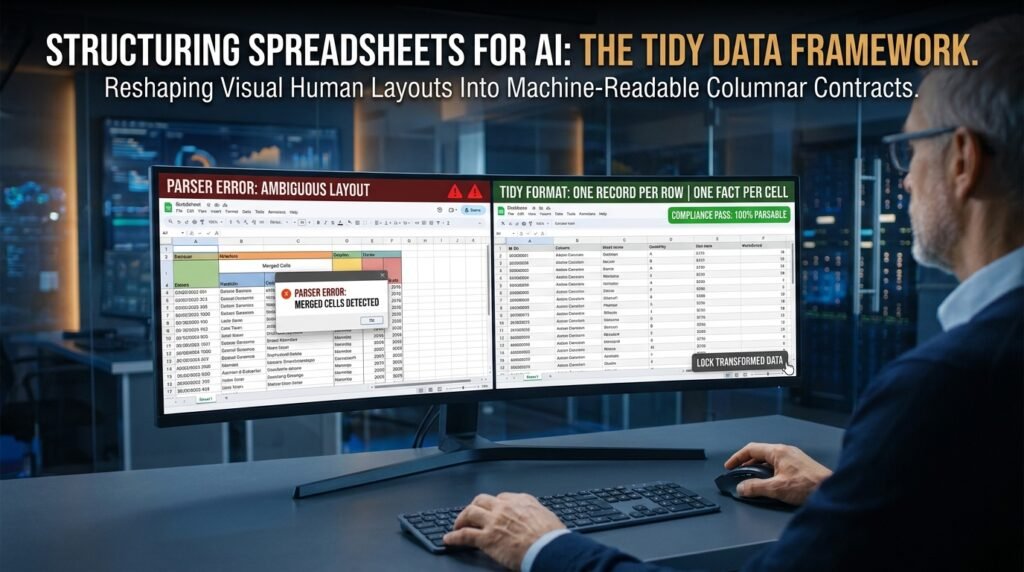
Before an AI can find a trend or build a chart, it has to understand your columns, and most spreadsheets are laid out for human eyes, not for a parser. The single biggest accuracy gain comes before you write any prompt: reshape the data so each column holds one thing, each row holds one record, and each header says exactly what it is. Get the layout right and a plain prompt works. Get it wrong and no prompt can save it.
The shape a parser wants: tidy data
There’s a name for the layout AI tools read best.
Statisticians call it tidy data, and the rules are short: one variable per column, one record per row, and one value per cell. A column called ‘Sales’ holds only sales numbers. A row is a single observation, like one rep in one quarter. A cell never holds two facts at once. This sounds obvious until you look at a real working sheet, which usually breaks all three rules in the name of looking neat to a person. The parser doesn’t see neat. It sees ambiguity, and it guesses.
Everything else in this article is a consequence of those three rules. When an AI miscounts your data or charts the wrong thing, the layout broke one of them.
Before and after: the same data, two layouts
The contrast is easier to see than to describe.
Here’s a sales sheet built for a human reader, with quarters spread across columns, a title row on top, and a total mixed into the data.
Before: laid out for the eye Sales by rep (2026) <- title eats row 1 Rep | Q1 | Q2 | Q3 Ana | 1200 | 1400 | 1300 Ben | 900 | 1100 | | | | 1500 <- whose number is this? Total | 2100 | 2500 | 2800 <- a total inside the data |
A person reads that fine. A parser hits four problems: the title isn’t data, the quarters are values pretending to be columns, one row lost its name, and the total looks like another rep. Now the same data in tidy form.
rep | quarter | year | sales |
Ana | Q1 | 2026 | 1200 |
Ana | Q2 | 2026 | 1400 |
Ana | Q3 | 2026 | 1300 |
Ben | Q1 | 2026 | 900 |
Ben | Q2 | 2026 | 1100 |
Ben | Q3 | 2026 | 1500 |
One row per observation, no title row, no total row, every value labeled. The quarter moved from a header into its own column, which is the change people resist most and benefit from most. A prompt like ‘total sales per rep’ now just works, because every fact the model needs is sitting in a labeled column.
Header rules that survive a parser

Headers are the labels the model reasons with, so sloppy headers produce sloppy analysis.
A few conventions keep them readable to both you and the tool.
- Use one header row, and put it in row 1. No title above it, no blank rows between it and the data.
- Make every header unique. Two columns both called ‘Amount’ force the model to guess which is which.
- Keep names short but literal. ‘order_date’ beats ‘Date’ when the sheet has three dates in it.
- Avoid spaces and symbols. Lowercase with no spaces, like ‘unit_price’, travels cleanly into formulas and any code the AI writes.
- Don’t bury units in the header. ‘weight_kg’ is fine; ‘weight (kg, approx, see note)’ is not.
The habits that wreck analysis
Most analysis failures trace back to a layout choice that felt tidy at the time.
Habit | Why it breaks AI analysis |
Merged cells | The parser can’t tell which row or column the value belongs to |
Two-row headers | The model reads the second header row as data |
Totals inside the data | A summary row gets counted as another record |
Color as meaning | ‘Red means overdue’ is invisible to a text parser |
Units mixed into cells | ‘$1,200’ and ‘1200’ won’t add up together |
Blank spacer rows | An empty row can end the table early in the parser’s eyes |
Multiple values per cell | ‘Smith, John (West)’ is three facts the model must untangle |
The quiet killer on that list is color as meaning. People encode status in fill color all the time, then ask the AI why it can’t find the overdue invoices. The color was never data the model could read. If a fact matters, it needs to live in a cell as text, not in formatting.
One value per cell, every time

This rule earns its own section because breaking it causes the most rework.
A cell holding ‘Smith, John (West)’ bundles a last name, a first name, and a region. Any analysis by region now depends on the model parsing that string correctly every single time, and it won’t. Split it at the source into last_name, first_name, and region columns. The same goes for a cell like ‘3 boxes @ 12.99’, which hides a quantity and a price the model would have to guess apart. Splitting compound cells up front is tedious for ten rows and a lifesaver for ten thousand, because you do it once instead of hoping the model does it right on every pass.
Types and consistency the model relies on
A column is only useful if every cell in it is the same kind of thing.
Dates are the usual offender. A ‘date’ column that mixes ‘2026-01-04’, ‘Jan 4′, and ’04/01/26’ reads as text, not dates, so any time-based analysis fails or, worse, silently misorders. Pick one date format and hold it. Numbers stored as text are the second trap: a stray space or a currency symbol turns a number into a string the model can’t sum. Categories should use a fixed set of labels, so ‘West’, ‘west’, and ‘W’ are one category, not three. Consistency inside a column matters more than which format you chose, because the model learns the column from its contents.
Add the columns the model wishes it had
Sometimes the fix is a column you don’t currently keep.
Two additions pay off repeatedly. First, a stable unique ID per row, even a plain row number, so the model can refer to a record without depending on a name that might repeat. Second, an explicit column for anything currently implied by position or formatting. If your rows are grouped by region with a blank line between groups, that grouping is invisible to the parser; a ‘region’ column on every row makes it real. The rule of thumb: if you know a fact about a row but it isn’t written in a cell on that row, the model doesn’t know it.
A pre-analysis checklist
Run this before you hand a sheet to any AI tool.
- One header row in row 1, with unique, literal names?
- One record per row, one value per cell?
- No merged cells, no totals row, no blank spacer rows inside the data?
- Each column a single consistent type, dates and numbers included?
- Anything shown by color or position also written as a value?
- A unique ID column, if records could share a name?
Six checks. If a sheet passes all six, most analysis prompts will work on the first try, and the ones that don’t are genuine logic questions rather than layout problems in disguise.
A worked example: from working sheet to analysis-ready
Say you’ve inherited a regional sales tracker that looks fine on screen.
It has a title row, regions shown by colored bands, months across the top, and a totals row at the bottom of each region. You reshape it in four moves: delete the title and totals rows, add a ‘region’ column and fill it down so the color bands become text, unpivot the months into a single ‘month’ column with a matching ‘sales’ column, and confirm the dates and numbers are real types rather than text. The sheet looks worse to a human now, taller and plainer, and reads perfectly to the model. A prompt asking for ‘monthly sales trend by region’ returns a clean answer, because every dimension it needs, region, month, and value, is an explicit labeled column instead of a visual cue.
Long beats wide, and here's the mechanism
The reshape people resist most is the one that helps most.
A wide layout puts each time period in its own column: one for Q1, another for Q2, and so on. To a person that’s compact and readable. To a model it means every period is a separate variable with no shared ‘time’ column to reason over, so a question like ‘how did sales trend across quarters’ has nothing to grab. Long format fixes this by giving every observation its own row, with a ‘quarter’ column naming the period and a ‘sales’ column holding the value. Now ‘trend over time’ is a single column the model can sort, group, and chart. The data didn’t change. Its shape did, and shape is what the parser reads.
Two layouts the AI silently misreads
Some layouts don’t throw an error; they just produce a wrong answer with full confidence.
The first is the cross-tab, a grid with categories down the side and across the top and counts in the middle. People build these as finished summaries, then ask the model to analyze further, and it struggles because the grid is already aggregated and no longer labeled by variable. Hand it the underlying records instead, and let it build the cross-tab. The second is the repeated header block, where one sheet stacks several little tables, each with its own header row, separated by blank lines. Your eye sees four tables; the parser sees one table full of stray header rows masquerading as data. Split stacked tables onto their own sheets, or merge them into one table with a column naming which group each row came from.
Give your columns a data dictionary
A few lines describing your columns save the model from guessing.
For anything past a trivial sheet, keep a short note somewhere, a separate tab or the top of your prompt, that says what each column means, its units, and its allowed values. ‘amount = order total in USD, excludes tax’ removes a whole class of misreading, because the model no longer has to infer whether ‘amount’ includes tax or shipping. Writing these definitions also forces you to spot your own inconsistencies. When you can’t write a one-line definition for a column, that’s usually a sign it’s holding more than one thing and should be split.
When you can't reshape the source
Sometimes the messy sheet isn’t yours to change.
A shared workbook, a system export you can’t alter, a report someone else owns: these arrive as they are. The answer is to never analyze the source directly. Make a copy, or better, build a clean ‘analysis’ tab that pulls from the source and reshapes it there, so the original stays untouched and your tidy version refreshes when the source updates. A query function or a small set of formulas can handle the unpivoting and the type-fixing in that tab. You get clean structure for the AI without asking anyone else to change how they work.
Reshape without rebuilding by hand
Turning a wide sheet into a long one sounds like tedious copy-paste. It doesn’t have to be.
Both Excel and Google Sheets can convert columns into rows without manual work. Power Query in Excel has an unpivot step built for exactly this, and Google Sheets can manage it with a formula approach or an add-on. The specific button isn’t the point; it’s that converting wide to long is a known, repeatable operation rather than a slog you redo every month. Set it up once against the source and the tidy version regenerates itself, which removes the main excuse people give for leaving data in a parser-hostile shape.
Questions people actually ask
Do I really have to unpivot wide data into long form?
For trend and grouping questions, almost always. Wide layouts, with months or quarters as columns, force the model to treat each period as a separate variable, which breaks ‘over time’ analysis. Long format, one row per period, is what lets it compare across time cleanly. It looks less compact to you and reads far better to the tool.
Will the AI fix a messy layout if I just ask it to?
Sometimes, for a small sheet, and unreliably. The catch is that you can’t see when it guesses wrong, so a quietly mis-parsed merge becomes a wrong number in your result. Reshaping the data yourself is slower up front and removes the guessing, which is the trade worth making whenever the numbers matter.
How should I handle missing values?
Leave the cell genuinely empty, or use a single consistent marker you tell the model about. The mistake is filling blanks with zero when the value is unknown, because the model can’t tell a real zero from a placeholder, and your averages shift. Decide what blank means and keep it uniform down the column.
Does this matter if I’m using a built-in AI feature instead of pasting data?
Yes, and often more. Built-in features like a spreadsheet’s own assistant read the same grid you see, so merged cells and totals rows trip them up just as hard. Tidy structure helps every tool, because the problem was never the tool. It was the shape of the data.
My sheet is full of formulas and the AI gets confused. What do I send?
Send the values, not the formulas. Copy the range and paste it back as values into your analysis copy, so the model sees ‘1200’ rather than ‘=B2*C2’. The formula is how the number was made, which the model doesn’t need and can misread as text. A values-only copy is cleaner to analyze and safer to share, because it doesn’t expose the logic behind the sheet.
Reshape one sheet before your next analysis
Take the sheet you most often ask questions about and run the six-point checklist on it once. Delete the title and totals rows, turn any color or grouping into a real column, unpivot periods into a single column, and lock each column to one type. Save that as your analysis copy, separate from the pretty version you show people. The next time you ask an AI for a trend, you’ll get the trend instead of a polite explanation of why it can’t find one.